How to Use an SEO Crawler Tool to Uncover and Fix Hidden Site Errors Automatically

We have all been there. You launch a beautiful, multi-lingual website, load it with localized content, and wait for the organic traffic to pour in. But weeks pass, and your rankings remain flat. Often, the culprit isn't your content—it's a collection of silent, technical errors lurking deep within your site's architecture.
To find and fix these issues before they tank your search visibility, you need a reliable seo crawler tool. This guide will show you exactly how to configure website crawling software, run an automated SEO diagnosis, and keep your technical site health pristine on autopilot.
What is an SEO Crawler Tool and Why is it Essential for European Businesses?
Understanding Website Crawling Software
An seo crawler tool is a software application that mimics search engine bots (like Googlebot or Bingbot). It systematically traverses your website by following links, parsing your HTML, rendering JavaScript, and indexing assets.
While search engines crawl your site to index it, an SEO crawler does so to diagnose issues. It flags broken links, duplicate content, redirect loops, and security vulnerabilities, presenting them in an actionable dashboard.
These tools generally fall into two categories:
- Desktop-Based Crawlers: Software installed locally on your computer (e.g., Screaming Frog). They are highly customizable but depend on your local machine's processing power and internet connection.
- Cloud-Based Crawlers: Hosted platforms that run crawls on remote servers. They can easily handle massive enterprise sites, automate recurring schedules, and integrate with other cloud platforms.
The Impact of Technical Errors on Multi-Lingual European Sites
For businesses operating across Europe, technical SEO is significantly more complex. Managing a website that serves UK, French, German, and Spanish audiences means dealing with complex multi-lingual structures, localized subfolders or ccTLDs, and strict regulatory frameworks like GDPR.
According to research from Content Marketing Institute Europe, 64% of B2B marketers struggle with managing multi-lingual content structures and localized technical errors. A single misplaced tag can cause search engines to serve the wrong language version to your users or, worse, index duplicate versions of your pages, diluting your search authority.
Furthermore, European sites must maintain strict security standards. Crawlers help you identify mixed content issues (HTTP assets loading on HTTPS pages), which can violate GDPR-compliant secure data transmission standards and trigger warning banners in modern browsers.
Prerequisites: What You Need Before Starting Your Technical Site Audit
Before launching your first crawl, ensure you have the necessary access and configurations ready.
Access to Domain Analytics and Search Console
To get the most out of your technical site audit, you should have verified admin access to:
- Google Search Console (GSC): This allows you to compare your crawler's findings with what Google actually sees.
- Bing Webmaster Tools: Crucial for European markets where Bing has a notable market share, particularly in corporate environments.
- Your Web Hosting Control Panel or CDN (e.g., Cloudflare): You may need to temporarily adjust security settings or rate limits if your hosting provider mistakes the crawler for a malicious DDoS attack.
Choosing the Right Crawler Configuration
Define the scope of your crawl. If you are auditing a live production site, you will want to crawl the entire domain. If you are testing updates, you might limit the crawl to a specific staging subdirectory or a list of target URLs.
| Requirement | Desktop Crawler | Cloud-Based Crawler / Autonomous Platform |
|---|---|---|
| Ideal Site Size | Small to Medium (<10,000 pages) | Large to Enterprise (10,000+ pages) |
| Automation | Manual execution required | Fully automated on a schedule |
| System Resource Impact | High (uses local RAM and CPU) | None (runs entirely in the cloud) |
| Integration Capabilities | Limited local exports (CSV/XLS) | API integrations with Slack, Jira, and CMS |

Why Cloud-Based Automation is Criminally Underrated
Many classic SEOs still swear by manual desktop crawlers. They love spending hours tweaking fifty different custom extraction settings and waiting for their laptop fans to stop screaming while a 50,000-page crawl finishes.
But honestly? Manual crawling is a massive time sink and highly prone to human error.
If you are running a fast-growing business, you don't have time to manually run a technical site audit every single Tuesday morning. Technical SEO should not be a reactive chore that you perform only when traffic starts dropping. It needs to be an automated, continuous process.
Cloud-based automation and autonomous platforms run quietly in the background. They catch issues the moment a developer deploys a broken template or a content editor accidentally deletes a parent category page. If you aren't automating your crawling, you are playing defense with your organic traffic.
Step 1: Configure Your Website Crawling Software for an Optimal Scan
To get accurate data without crashing your server, you must configure your website crawling software correctly.
Setting the User-Agent and Crawl Speed
Most SEO crawlers allow you to select a "User-Agent"—the identity the crawler presents to your server.
- Select the User-Agent: Set this to match Googlebot (Smartphone). Because Google indexation is mobile-first, crawling as a mobile user-agent ensures you see the exact responsive design, JavaScript execution, and content structure that Google uses for ranking.
- Adjust Crawl Speed (Rate Limit): European hosting bandwidth can be expensive or strictly capped, and aggressive firewalls (like Cloudflare or Akamai) may block rapid requests. Limit your crawl speed to 2 to 5 requests per second (RPS). This keeps your server response times stable and prevents your IP from getting blacklisted.
Handling JavaScript Rendering and CSS
Modern web frameworks like React, Angular, and Vue.js rely on JavaScript to render content dynamically. If your crawler only reads the raw HTML, it will miss key elements like internal links, dynamic text, and structured schema markup.
- Enable JavaScript Rendering: In your crawler's settings, switch the rendering engine from "Text Only" to "JavaScript" (usually powered by an embedded Chrome instance).
- Set a Render Timeout: Give complex scripts 3 to 5 seconds to execute before the crawler captures the page snapshot.
Pro Tip: Always run a quick test crawl of 50 to 100 pages first. Verify that the crawler is successfully executing JavaScript and not triggering a wall of 503 "Service Unavailable" errors on your server.
Step 2: Run the Automated SEO Diagnosis to Identify Critical Errors
With your configuration saved, initiate your automated SEO diagnosis and monitor the progress.
Analysing HTTP Status Codes (3xx, 4xx, 5xx)
As the crawler navigates your site, it records the HTTP status code returned by every URL. According to MDN Web Docs detailing HTTP response status codes, these codes are grouped into distinct categories that tell us how the server handled the request.
[Start Crawl]
      │
      ├───► 200 OK (Healthy Page) ──► Keep Indexing
      │
      ├───► 301/302 Redirect ─────► Follow to Destination (Check for Loops)
      │
      ├───► 404 Not Found ────────► Flag for Link Update
      │
      └───► 500/503 Server Error ─► Reduce Crawl Speed / Check Hosting
- 200 OK: The page loaded successfully.
- 301/302 Redirects: While redirects are normal, look out for redirect chains (Page A -> Page B -> Page C). These waste your crawl budget and slow down page load speeds for users.
- 4xx Client Errors (especially 404): These represent dead ends where pages have been deleted without a redirect.
- 5xx Server Errors (especially 500 and 503): These indicate your server is struggling to handle the traffic or has crashed.
Uncovering Indexability and Robots.txt Blockers
A common reason pages drop out of search results is accidental de-indexation. Your crawler will flag:
- Robots.txt Exclusions: Pages that are blocked from search engine bots.
- Noindex Meta Tags: Pages containing
<meta name="robots" content="noindex">. Developers often forget to remove these tags when migrating code from staging to production. - Canonical Tag Mismatches: Ensure your canonical tags point to the authoritative, self-referential URL to avoid duplicate content penalties.
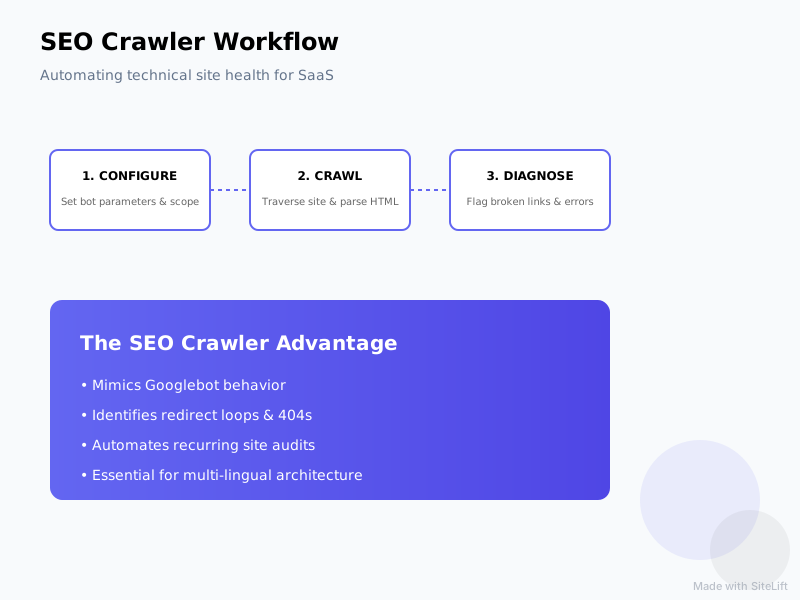
Infographic by SiteLift
Step 3: Use the Broken Link Checker to Preserve Link Equity
Broken links frustrate users and signal poor site maintenance to search engine algorithms.
Finding and Fixing Internal Broken Links
A report by SEMrush shows that 82% of crawled websites have issues with internal broken links, which can be easily resolved using a dedicated broken link checker.
- Extract the Broken Links Report: Once the crawl is complete, filter the results by "404 Page Not Found" status codes.
- Locate the Source Pages: A good seo crawler tool will show you the "Inlinks" (the pages containing the link to the broken URL).
- Update the Links: Go into your CMS and update these broken links to point to live, relevant resources, or remove the links entirely.
Auditing External Outbound Links
Your site likely links out to external sources. Over time, those external sites change their URL structures or shut down, leaving you with broken outbound links. Use your crawler's external link report to identify these dead ends and replace them with active, authoritative references.
Step 4: Audit Multi-Regional and Hreflang Configuration Errors
For European websites serving multiple countries and languages, auditing your hreflang configuration is vital to prevent content cannibalization and ensure a localized user experience.
Validating Hreflang Tags for European Audiences
Hreflang tags tell search engines which language and regional version of a page to show to users based on their location. For example, a user in Germany should see the de-DE version, while a user in Austria should see the de-AT version.
Your crawler will validate these tags against W3C guidelines on declaring language and regional codes. Look out for these common errors:
- Missing Return Tags: If page A links to its German equivalent page B using hreflang, page B must link back to page A. If this reciprocal link is missing, search engines will ignore the tags.
- Invalid Language/Region Codes: Using incorrect codes like
en-UK(the correct code isen-GB) orcz(the correct code for the Czech Republic iscs). - Self-Referencing Hreflang Missing: Every page must include a self-referencing hreflang tag pointing to itself.
Detecting Mixed Content and SSL Issues
To maintain strict security and GDPR compliance, your site must load all assets (images, scripts, CSS files) over secure HTTPS connections. Your crawler will flag any "Mixed Content" warnings—instances where an HTTPS page loads an asset via an insecure HTTP URL. Update these asset references to HTTPS to maintain a secure environment.
Step 5: Automate Future Crawls and Set Up Real-Time Alerts
Running a manual audit once a year is not enough. To maintain a healthy site, you need to turn your technical SEO into a continuous, automated process.
Scheduling Recurring Technical Audits
Set up your cloud-based crawler to run scans on a recurring schedule:
- Weekly Crawls: Ideal for dynamic e-commerce sites or content-heavy portals where inventory and articles change daily.
- Monthly Crawls: Perfect for standard B2B brochure sites to catch unexpected plugin updates or server configuration issues.
Integrating Alerts with Slack, Email, or CMS Platforms
Instead of manually logging into your SEO tool to check for errors, configure integrations that push critical alerts directly to your team's workflow. For example, if your crawler detects a sudden spike in 404 errors or a change to your robots.txt file, it should automatically:
- Send an alert to a dedicated
#seo-alertsSlack channel. - Create a ticket in Jira or Trello for your development team.
If you want to take automation to the next level, autonomous growth platforms like SiteLift can manage this entire pipeline for you. SiteLift works as an autopilot system that not only monitors your technical health but also generates targeted content, manages distribution networks, and tracks keyword momentum. This allows your organic search authority to compound without requiring manual technical intervention.
Troubleshooting Common Crawling Pitfalls with Your SEO Crawler Tool
Even with the best tools, you will occasionally run into technical hurdles during a crawl.
What to Do If the Crawler Gets Blocked
If your crawl suddenly stops or returns 403 "Forbidden" or 429 "Too Many Requests" errors, your server's security firewall or CDN (like Cloudflare) is likely blocking the crawler.
- The Fix: Whitelist the crawler's IP addresses in your CDN or web host firewall settings. Alternatively, customize your crawler's user-agent string to include a unique identifier that your firewall is configured to allow.
Handling Infinite Crawl Loops
Infinite loops occur when a crawler encounters dynamically generated pages that never end—often caused by calendar widgets, faceted search navigation, or product sorting parameters (e.g., ?sort=price_asc&color=blue&size=m).
- The Fix: Configure "Exclude" rules in your crawler settings using regular expressions (Regex) to ignore tracking parameters and dynamic filtering URLs.
Expected Outcome: The Benefits of a Clean, Error-Free Site
By systematically identifying and resolving these technical issues, you will unlock significant improvements in your site's search performance.
Improved Crawl Budget Efficiency
Search engines allocate a limited amount of time and resources (known as a "crawl budget") to scan your website. If your site is cluttered with redirect chains, duplicate pages, and 404 errors, search bots will waste their budget on low-value pages.
By cleaning up these technical roadblocks, you ensure that search engines spend their time indexing your high-value, revenue-generating content. For more details on how this works, read Google's official guide on managing crawl budget.
Enhanced User Experience and Conversion Rates
A technically sound website loads faster, has no broken links, and serves the correct language to the right audience. According to data from the HTTP Archive, over 37% of European desktop websites fail Core Web Vitals.
By fixing the technical issues flagged by your crawler, you directly improve your site’s loading speed and user experience. This leads to longer session durations, lower bounce rates, and higher conversion rates across your target European markets.
FAQ
What is the difference between a desktop and a cloud-based SEO crawler tool?
A desktop crawler runs on your local machine, using your computer's RAM and internet connection. It is ideal for quick, manual audits of smaller sites. A cloud-based crawler runs on remote servers, allowing you to schedule automated crawls, handle large enterprise websites, and collaborate with team members without slowing down your computer.
How often should I run an automated SEO diagnosis on my website?
For most business websites, running a weekly automated crawl is ideal. This allows you to catch broken links, accidental noindex tags, or server errors before they impact your organic rankings. If you run a large e-commerce site with frequent inventory updates, daily crawls may be necessary.
Can a broken link checker help improve my site's search engine rankings?
Yes. Resolving broken links improves user experience and helps search engine bots crawl your site more efficiently. It also ensures that link equity (PageRank) flows smoothly through your internal link structure, boosting the authority of your target pages.
How do I prevent an SEO crawler tool from crashing my website's server?
To protect your server, limit the crawl speed in your tool's settings—ideally to 2 to 5 requests per second. You should also schedule crawls during low-traffic hours (such as late at night) to minimize the load on your web host.
What are the most common hreflang errors detected by website crawling software?
The most common hreflang errors include missing return (reciprocal) tags, using incorrect country or language codes (like en-UK instead of en-GB), and failing to include a self-referencing tag that points back to the page itself.
— Julian Goldie, Technical SEO Specialist
Topics Covered:
- seo crawler tool
- website crawling software
- technical site audit
- broken link checker
- automated SEO diagnosis
More from SiteLift

LLM Visibility Tool: How to Measure and Grow Your Brand in ChatGPT and Perplexity
Discover how to use an LLM visibility tool to monitor ChatGPT brand mentions, track Perplexity citations, and scale your AI share of voice.

Single Page Application Search Engine Optimization: The Complete Rendering and Indexing Guide
Master single page application search engine optimization: rendering, indexing, Core Web Vitals & audits. Fix your SPA SEO today.

Best Rank Tracking Tool: 7 Must-Have Features for SEO and AI Search in 2026
Discover the best rank tracking tool for modern search. Compare SiteLift, Semrush, Ahrefs, and more across AI visibility, speed, and automated reporting.